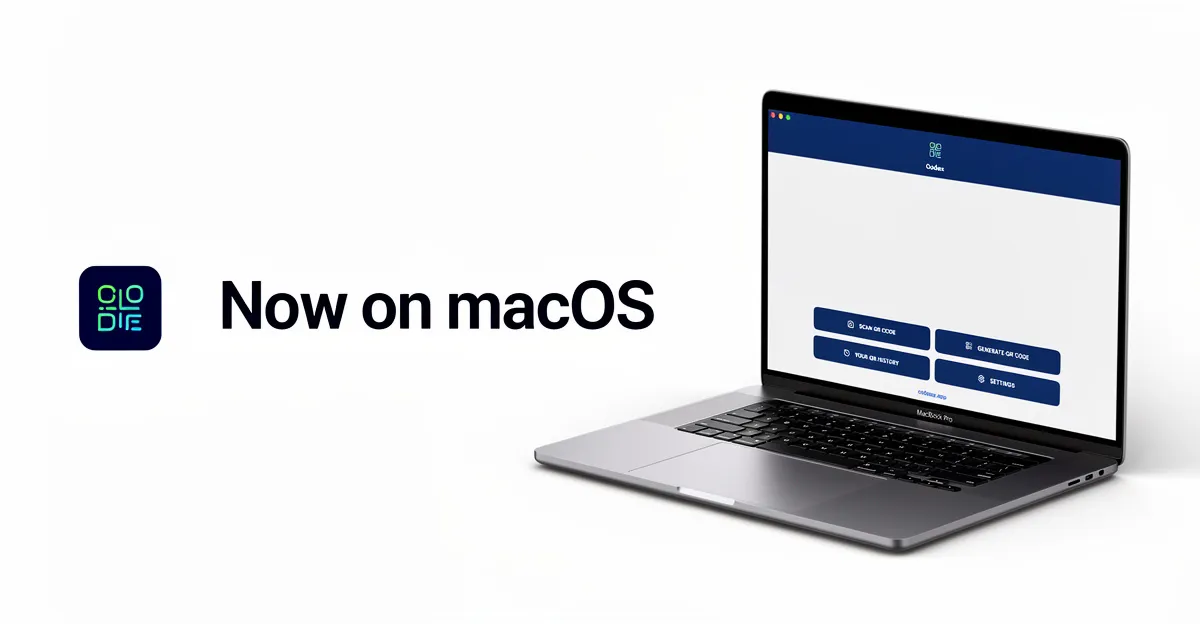
Quick answer: macOS has no built-in QR scanner. The fastest fix is Codex QR — a free native Mac app that reads QR codes from your camera, an image file, a screenshot, or your iPhone via Continuity Camera. 100% offline, no account, no upload.
No sign-up · Works on macOS 12+ · Universal binary (Intel + Apple Silicon)
Below are the 4 ways to scan a QR code on any MacBook Air, MacBook Pro, iMac, or Mac Mini — pick whichever fits your workflow, all of them take seconds.
Why macOS Doesn't Have a Built-In QR Scanner
While your iPhone can scan QR codes directly from the Camera app, Apple hasn't brought this feature to macOS. There's no system-level QR scanner on any Mac — not on macOS Sonoma, Sequoia, or any previous version.
This means if someone sends you a QR code in an email, you see one in a PDF document, or you need to scan a printed QR code from your desk, you need a third-party solution. Most people resort to browser-based tools that upload your images to remote servers. There's a better way.
Method 1: Scan QR Codes with Your Mac's Camera
Every MacBook has a built-in camera, and iMacs have one too. With Codex QR, you can use it as a live QR code scanner:
- Open Codex QR and tap Scan QR
- Select the Camera tab
- Hold the QR code in front of your Mac's camera
- The code is decoded instantly — copy, open, or save the result
This works great for scanning QR codes on printed materials, product packaging, business cards, restaurant menus, or any physical item on your desk.
Continuous scanning mode is also available — scan multiple QR codes in a row without stopping. Perfect for inventory, event badges, or batch processing.
Method 2: Scan QR Codes from Image Files
Have a QR code saved as a PNG, JPG, or other image file? Maybe someone sent it via email, Slack, or WhatsApp. Instead of reaching for your phone:
- Open Codex QR and tap Scan QR
- Select the File tab
- Drag and drop the image into the app, or click to browse
- The QR code is decoded instantly
This method also works with QR codes embedded in PDFs, presentations, and documents. Just save or export the image and drop it into Codex QR. No app installed yet? You can also read a QR code from an image online right in your browser, or grab the desktop QR scanner for Windows and Mac.
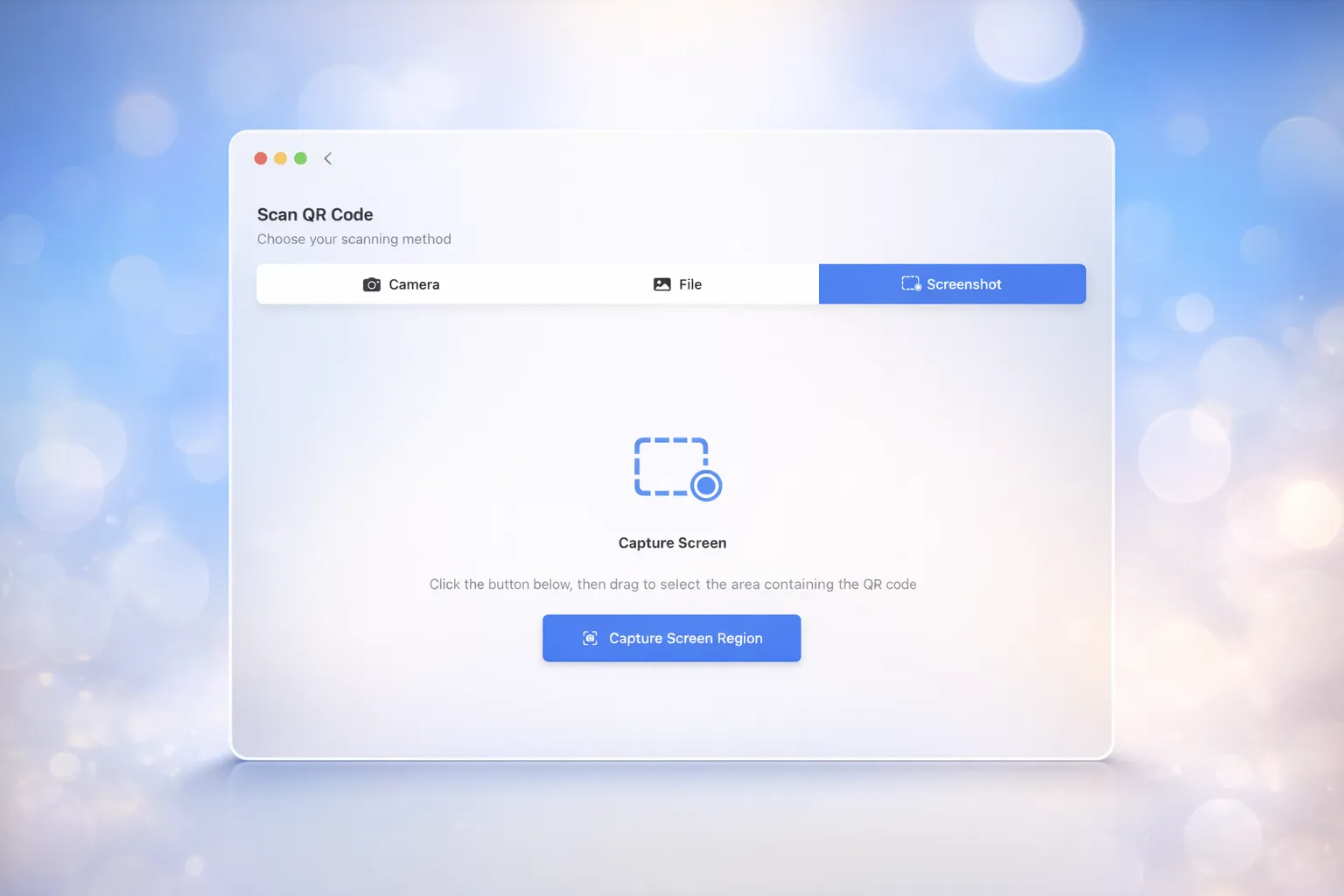
Method 3: Scan QR Codes from Screenshots (The Fastest Way)
This is the feature that makes Codex QR stand out. See a QR code on a website, in a video call, in a PDF, or anywhere on your screen? You don't need to save a screenshot first.
- Open Codex QR and tap Scan QR
- Select the Screenshot tab
- Click Capture — your screen dims and a crosshair appears
- Select the area containing the QR code
- Done — the code is decoded instantly
This is the fastest way to scan a QR code displayed on your Mac screen. No saving, no file management, no switching apps. One click, select, done.
Common use cases for screenshot scanning:
- QR codes in emails and newsletters
- QR codes on websites and web apps
- QR codes shared during Zoom, Teams, or Google Meet calls
- QR codes in PDF documents and presentations
- Two-factor authentication (2FA) setup QR codes
Method 4: Use Your iPhone Camera Directly in Codex QR
Here's a feature most people don't know about: you can use your iPhone's superior camera as a wireless webcam inside Codex QR on your Mac. Thanks to Apple's Continuity Camera, your iPhone appears as a camera device in Codex QR's camera selector — giving you the best of both worlds.
How to Set It Up
Requirements: Mac running macOS Ventura or later, iPhone nearby, both signed into the same Apple ID with Wi-Fi and Bluetooth enabled.
- Open Codex QR on your Mac and go to Camera Scan
- In the camera device selector, choose your iPhone instead of the built-in Mac camera
- Your iPhone camera activates wirelessly — point it at any QR code
- Codex QR decodes it instantly on your Mac, with full history, copy, and open features
Why This Is Better Than Just Using Your iPhone Camera
- Better camera quality — iPhone cameras are far superior to any Mac webcam, especially for small or distant QR codes
- Results stay on your Mac — decoded content goes straight into Codex QR's history, ready to copy, open, or export
- All QR types supported — WiFi, vCard, URL, email, events — Codex QR parses everything, not just links
- Batch and continuous mode — scan multiple QR codes in a row without switching between devices
- No app switching — everything happens inside Codex QR on your Mac
This is the ideal setup when you need to scan physical QR codes (printed materials, product packaging, posters) but want the results organized on your Mac. If you're a power user, see the 7 advanced Codex QR features that go beyond simple scanning.
New: Scan a WiFi QR Code and Connect in One Click
Since July 2026, Codex QR does something no other Mac QR scanner does: when you scan a WiFi QR code — the framed one at the café, the hotel, a friend's living room — it shows a Connect to Network button. One click and your Mac joins the network, password included, nothing to type. It's the same magic your iPhone does with its camera, finally on macOS.
Full guide: how to connect to WiFi from a QR code on your Mac.
Works on All Macs — 100% Offline
Codex QR is a native SwiftUI app built specifically for macOS — read the full launch story. It's not a web wrapper or an Electron app — it's a true Mac-native experience that feels right at home on your system.
It works on:
- MacBook Air (M1, M2, M3, M4)
- MacBook Pro (13", 14", 16")
- iMac, Mac Mini, Mac Studio, Mac Pro
- Both Apple Silicon and Intel Macs
Everything is processed locally on your Mac. No internet connection required, no data uploaded to servers, no account needed. Your WiFi passwords, contact details, and private links stay private.
Not Just Scanning — Generate QR Codes Too
While this guide focuses on scanning, Codex QR is also a full QR code generator for Mac. You can create QR codes for:
- URL — website links
- WiFi — share your network without typing passwords
- vCard — professional contact cards
- Email — pre-filled email with recipient, subject, body
- Phone / SMS — one-tap calling or messaging
- Calendar Event — add events directly
- WhatsApp — start conversations
- Location — GPS coordinates
- Plain Text — any content
All generated QR codes are static and permanent: they work forever, with no subscription required. More on QR codes that don't expire, and why codes from most free generators stop working. You can also customize colors and export in high resolution.
Need Dynamic QR Codes? Use Codex QR Cloud
If you need QR codes that you can edit after printing, track with scan analytics, or protect with a password, check out Codex QR Cloud (read the full Cloud guide). It works from any browser and offers:
- Dynamic QR codes — change the destination anytime
- Real-time scan analytics (location, device, time)
- Password-protected QR codes
- PDF and image file QR codes
- Social links landing pages
The free plan includes 5 dynamic QR codes and 1,000 scans per month.
Also Available on Windows
Codex QR is also available as a native Windows app from the Microsoft Store. Same powerful features — camera scanning, file scanning, screenshot scanning, continuous mode, 10+ QR types, batch generation, and full offline support.
Frequently Asked Questions
Can you scan a QR code on a MacBook?
Yes — any MacBook can scan QR codes, it just needs an app because macOS has no built-in scanner. With the free Codex QR app your MacBook reads QR codes from its camera, an image file, or a screenshot in seconds, entirely offline.
Can I use my iPhone camera to scan QR codes in Codex QR on Mac?
Yes. With Apple Continuity Camera (macOS Ventura or later), your iPhone appears as a camera device in Codex QR's camera selector. Just pick your iPhone from the dropdown, and its camera feeds directly into Codex QR — giving you superior camera quality with all the Mac-side features like history, parsing, and batch scanning.
Can I scan QR codes on my Mac without an app?
No. Unlike iPhones, macOS does not have a built-in QR code scanner. You need a third-party app like Codex QR, which is free and works offline. Alternatively, you can use your iPhone with Continuity Camera.
Does Codex QR work on MacBook Air and MacBook Pro?
Yes. Codex QR works on any Mac running macOS, including MacBook Air, MacBook Pro, iMac, Mac Mini, and Mac Studio. It supports both Apple Silicon (M1, M2, M3, M4) and Intel Macs.
Can I scan a QR code from a screenshot on Mac?
Yes. Codex QR has a built-in screenshot scanning feature. Click Screenshot, select the area of your screen containing the QR code, and it decodes instantly. No need to save the screenshot first.
Does Codex QR require an internet connection?
No. Codex QR works 100% offline. All scanning and QR code generation happens locally on your Mac. Your data never leaves your device.
Is Codex QR free?
Yes. Codex QR for macOS is free to download and use. You can scan and generate unlimited QR codes with no ads and no account required.
Download Codex QR for macOS — Free
Scan and generate QR codes on your Mac. Native app, works offline, no account needed.
Download for macOS Download for Windows