Quick answer: your iPhone joins WiFi the moment you point the camera at a QR code — your Mac can't. macOS has no built-in QR scanner, let alone one that connects you. Codex QR closes that gap: scan the WiFi QR code on your Mac and click Connect to Network. One click, no typing, you're online.
No sign-up · macOS 12+ · Universal binary (Intel + Apple Silicon)
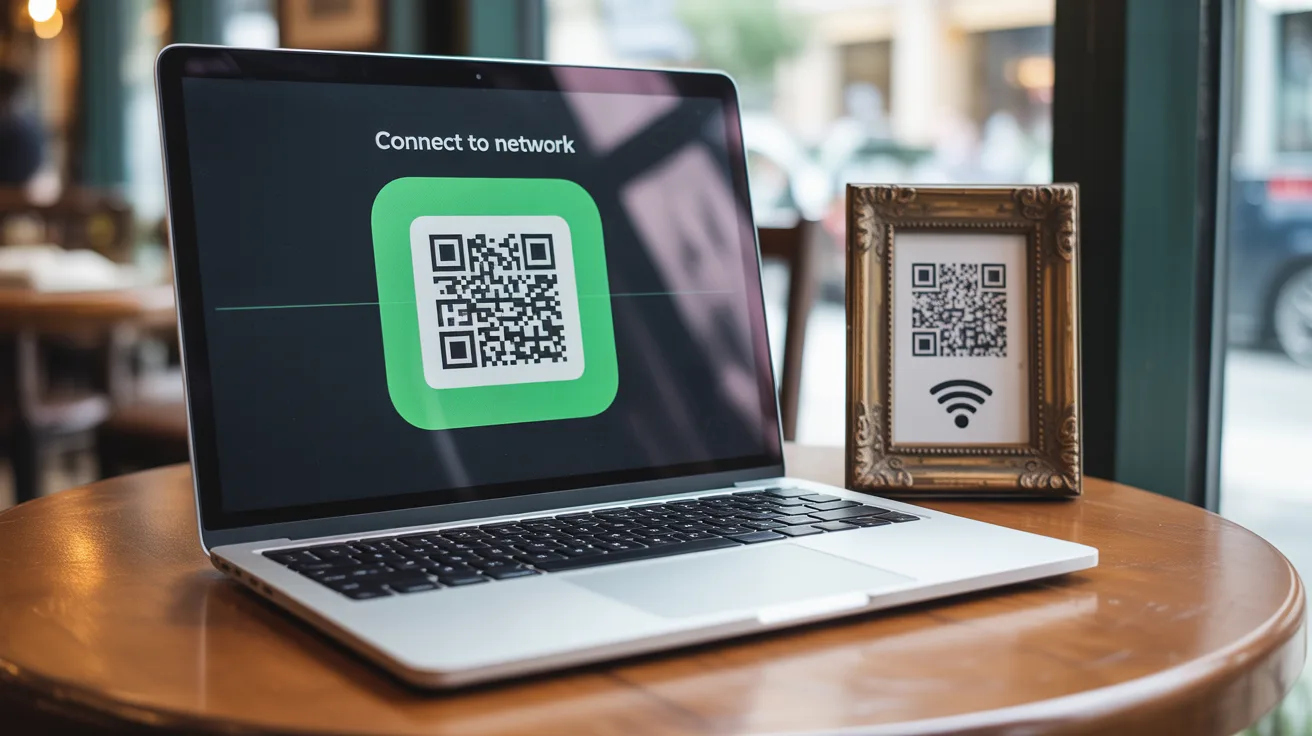
The problem: WiFi QR codes are everywhere, and Macs ignore them
Cafés, hotels, offices, living rooms — the little framed QR next to the router has become the standard way to share WiFi. Phones handle it natively. But sit down with a MacBook and the ritual begins: photograph the QR with your phone, read the password off the screen, type twenty random characters into macOS, get one wrong, start again.
It works the same on every Mac — MacBook Air, MacBook Pro, the new MacBook Neo, iMac, Mac mini, Intel or Apple Silicon. A WiFi QR code contains everything needed to join — network name, password, encryption type — in a standard format (WIFI:T:WPA;S:Network;P:password;;). The information is right there. Your Mac just never had a way to use it.
The fix: scan, click, connected
- Scan the QR code — with your Mac's camera, from a screenshot (fastest: the QR is on your screen during a video call), or from an image file
- Codex QR recognizes it as a WiFi network and shows the network name
- Click Connect to Network
- Done — your Mac joins with the embedded password. Nothing to type, nothing to copy
If you prefer the old way, the Copy WiFi Password button is still there — one click puts the password on your clipboard.
About the Location permission (one-time)
The first time you connect, macOS shows a Location permission prompt. That's an Apple platform rule, not our choice: since macOS 10.15, any app that scans for nearby WiFi networks needs Location access, because network names can reveal where you are.
Codex QR uses the permission for exactly one thing — finding the network named in your QR code. Your location is never stored, logged or transmitted. Everything happens locally on your Mac, like every other Codex QR feature.
Troubleshooting
- "Network not in range" — the QR is valid but your Mac can't see that network. Move closer to the router and try again.
- "The network refused the password" — the QR code contains an outdated password. Ask for the current one (and suggest they print a fresh WiFi QR code).
- Hidden networks — supported: Codex QR searches by the exact name in the QR code, so networks that don't broadcast still connect.
Make your own WiFi QR code (free)
The other side of the coin: if guests keep asking for your WiFi password, put a QR code on the wall. Our free WiFi QR code generator creates one in seconds — WPA2/WPA3, hidden networks, custom colors, print-ready. And since it's a static code, it never expires.
More QR power on your Mac
WiFi connect is one of four ways Codex QR scans on macOS — camera, image files, screenshots, and your iPhone as a wireless camera. The full rundown is in our guide on how to scan QR codes on Mac.
One click from QR to WiFi
Free native app for macOS. Scan anything, connect instantly, everything stays on your Mac.
Download for macOS Download for Windows