QR Code with a Picture

Put any photo in the middle of your QR code, not just a logo. Free native app for Windows and Mac, resize it, preview it live, and export in high resolution with no watermark.

or start with a free QR code online, then add your photo in the desktop app
Any photo works Resize & preview live High-res export, no watermark

What it actually looks like

Three real QR codes, made with Codex QR, each with a different picture at the center instead of a logo.

QR code with a heart picture at the center, for a wedding invitation or favor

Wedding favor

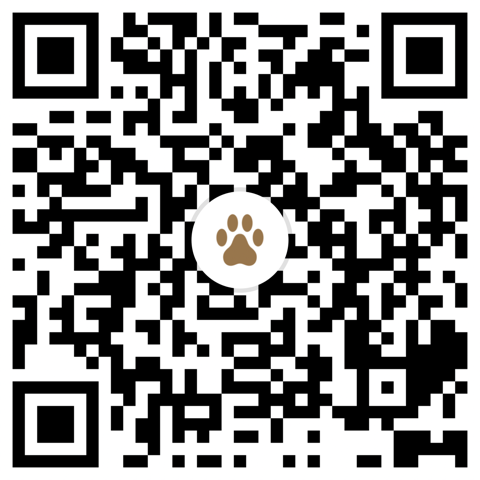
QR code with a paw print picture at the center, for a pet ID tag

Pet ID tag

QR code with a gift picture at the center, for a gift tag

Gift tag

Every code above is real and scannable, point your camera at one to try it.

A QR code with your own picture, not someone else's logo

Most "QR code with logo" tools stop at a small square brand logo. Codex QR doesn't draw that line.

A QR code with a picture works exactly like any other QR code; the difference is what sits at the center. Instead of a generic logo, you choose the exact photo you want: a couple's engagement photo on a wedding favor, a pet's face on their ID tag, a product shot on the packaging, a team photo on an event badge. Codex QR's "Add Logo" feature accepts any image file from your computer, so the picture in the middle is whatever you decide it should be.

It also changes how people react to the code. A plain black-and-white square can feel like a dead end, something to scan with caution. A code with a recognizable photo signals it belongs to someone, which makes it feel safer and more worth scanning, especially on a personal item like a gift tag or an invitation.

The whole thing happens inside the app, on your computer. You pick the photo from your own files, drag a slider to resize it, and watch the preview update live, no upload, no waiting on a server to process your image.

How to put a picture in a QR code

Four steps, no design software, done entirely in the Codex QR desktop app.

1

Create your QR code

Open Codex QR and create any type of code: a link, Wi-Fi, a vCard, plain text, whatever you need.

2

Add your photo

Tap "Add Logo" and choose any picture from your computer, not just a square brand logo.

3

Resize and position

Drag the size slider until the photo sits cleanly in the center without covering too much of the code.

4

Export high-res

Download the finished QR code as a high-resolution image, ready to print or share, no watermark.

Download for Mac Download for Windows

Where a picture QR code works best

Anywhere a plain black-and-white square would feel impersonal.

Wedding invitations & favors

Put the couple's photo in the code on invitations or favor tags that link to the registry or photo album.

Pet ID tags

Add your pet's photo to a tag that opens their vet info or your contact details if they wander off.

Restaurant table cards

Show a dish photo next to the code that opens today's menu or specials.

Product packaging

Put a product photo on the box next to the code that opens setup guides or reviews.

Photography & portraits

Hand clients a code with their own portrait that opens the full online gallery.

Gift tags & cards

A photo of the moment turns a plain gift tag into a keepsake that also links to a video or playlist.

Event badges

Attendee photo on the badge, code underneath linking to their profile or the event schedule.

Family keepsakes

Frame a family photo code that opens a video message or a shared photo album.

Keep it scannable

A QR code only works if phones can still read it once the photo is in place.

Don't cover too much

Keep the photo to a small part of the code, centered. Covering too much of the pattern makes it unreadable.

That's what makes it possible

QR codes can lose part of their pattern and still scan correctly, which is exactly what makes adding an image in the first place possible.

Size for the distance

A code with a photo still needs to be big enough for where people will stand when they scan it.

Always test first

Scan the finished code with two or three different phones before printing or sharing it anywhere.

Frequently Asked Questions

Everything about putting a picture in a QR code with Codex QR.

Can I put any picture in a QR code, or does it have to be a logo?
Any picture. Codex QR's logo feature works with any image file you choose from your computer, a couple's photo, a pet, a product shot, a team photo, not just a square brand logo.
Will adding a photo stop my QR code from scanning?
Not if you keep it reasonably small and centered. QR codes are built to keep working even when part of the pattern is covered, which is exactly why a centered image doesn't break the code. Codex QR warns you if the photo is too large for the code to scan reliably, and it's still worth testing a scan before printing anywhere.
Is adding a picture to a QR code free?
Creating plain QR codes with Codex QR is free. Adding a photo to the center of the code is a Pro feature of the desktop app, available on both Windows and Mac.
Does this work on both Windows and Mac?
Yes. Codex QR is a native app for both Windows and macOS, and the photo feature works the same way on each: pick an image, resize it, and it sits at the center of your QR code.
Can I download the QR code as a picture afterward?
Yes. Once you're happy with it, export the QR code as a high-resolution image file, ready to print or share, with no watermark.

Make your QR code personal

Add any picture, resize it live, and export in high resolution. Free to download, logo/photo overlay is a Pro feature.