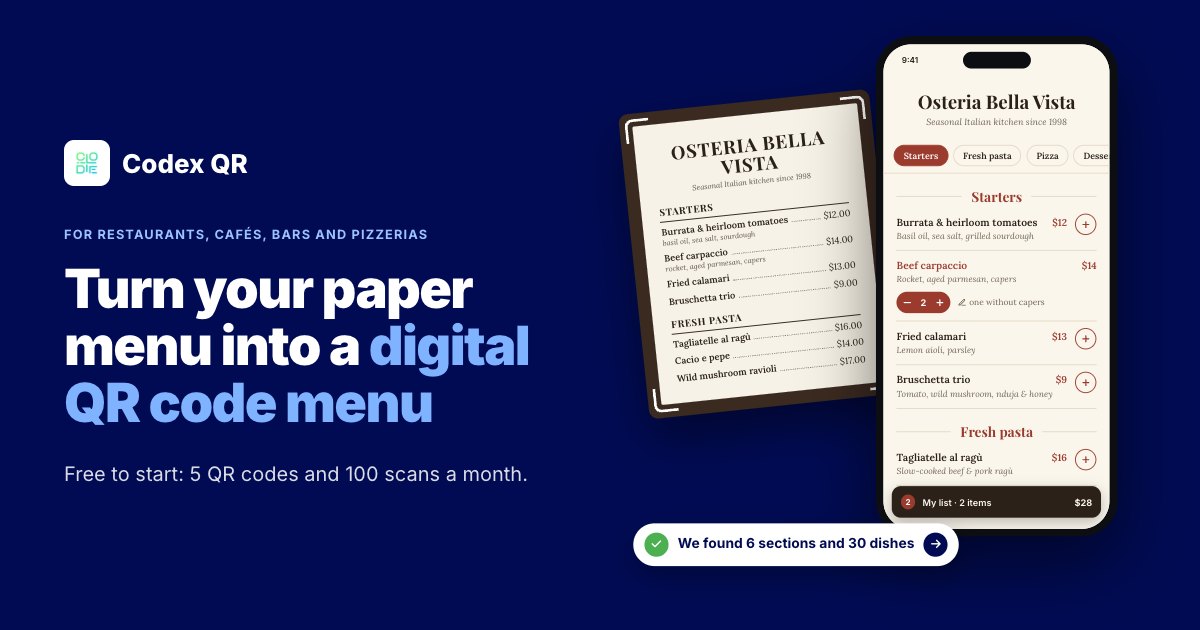
Quick answer: snap a photo of the paper menu you already have, check the dishes and prices, print the QR and put it on the table. Guests scan it with their phone camera and the menu opens, no app needed. With the Codex QR code menu for restaurants, the AI reads your photos in 10-30 seconds and you can start free. Below are the steps one by one, what really changes between the free plan and Pro, and the mistakes we see most often.
What you need before you start
- The menu you use today: on paper, as a PDF, or even just a list of dishes.
- A phone to take the photos, or your computer if you already have the PDF.
- A printer: the table tent and the cards print on a regular sheet of A4 or US Letter paper.
- A free Codex QR account: you can open the editor without one, but you need to sign up to have the AI read your photos and to create the QR.
Step 1: Start from the menu you already have
Open the menu builder and pick where to start. Nothing to retype:
- Photo or PDF: up to 6 photos, one per page, or the PDF of your menu.
- Dictate your menu: say the section, then each dish with its price, for example "Pasta, carbonara 15 dollars, cacio e pepe 14 dollars". Works in Chrome and Safari.
- Paste a list of dishes copied from a document or a message.
- Type it by hand: handy if you have only a few dishes or a menu of the day.
If you start from photos, three things help: daylight and no flash, the menu lying flat, and the whole page in the frame. If the menu is laminated, tilt it a little to get rid of reflections, which can hide a price.
Step 2: Check dishes and prices
In 10-30 seconds the AI finds sections, dishes, prices, language and currency. When it isn't sure about a name or a price, it marks it in orange, so you know exactly where to look instead of rechecking the whole menu.
While you're at it, three things are worth fixing:
- Descriptions: two or three ingredients under the dish name help guests choose without calling the waiter.
- Allergens: in many countries, including the EU and the UK, allergen information is a legal requirement. List allergens in the dish descriptions, or use the menu's footer note to tell guests how to ask your staff.
- Service charge and opening hours: put these in the footer note too, so nobody gets a surprise with the bill.
Step 3: Pick a style
There are four styles: Trattoria, Modern, Bistro and Café. Pick the one that looks most like your place and check the preview on your phone. The menu is easy to read without zooming, the sections (starters, mains, desserts) stay at the top, and one tap jumps to the one you want.
Step 4: Print the QR and put it on the table
When you create the QR you can download two ready-made layouts, in A4 or US Letter, with your restaurant's name on top:
- Table tent: one sheet you fold in half so it stands on the table.
- 4 small cards: one sheet you cut along the lines, for card holders or the counter.
Before you print thirty of them, print one and test it with two or three different phones, at least one iPhone and one Android, under your restaurant's lighting. If you print the QR yourself on other materials, keep it at least 3 cm (about 1.2 inches) wide, dark on a light background, and choose matte paper: glossy lamination reflects the lights.
What your guests see
A light page that loads fast, even on a weak signal. Guests tap + on dishes, add a note like "no onions" and press Show to waiter: the list opens full screen, in large type. No order is sent: the list stays on their phone and your staff take the order as usual.
Free or Pro: what really changes
Better to know before you print. The Free plan is there to try it with your real menu:
- a digital menu from a photo, PDF or list, with the table tent and cards to print;
- 5 QR codes and 100 scans a month per account: after 100 scans, your codes pause until next month;
- the menu can't be edited after you create it;
- a small "Shared via Codex QR" line appears at the bottom of the menu.
The Pro plan ($9 a month, or $84 a year) is made for the menu you use every day: 50,000 scans a month, edits after printing with the same QR, previous versions saved, colors and fonts taken from your logo or website, and no "Shared via Codex QR" line.
Some quick math: in a restaurant with 15 tables that fill up at lunch and dinner, if at least one person per table scans the QR, that's about 30 scans a day. The 100 scans of the Free plan run out in three or four days. For one evening, an event, or a menu few people look at, Free is enough. For the menu on your tables every day, you need Pro.
Daily specials and dishes that change
If your menu changes often, what matters is editing, not the QR itself. With Type it by hand you set up a menu of the day in a minute: sections, dishes, one price per section for a set menu, and dishes without a price too. On Pro you update it every morning from your phone, press Update, and the card on the table stays the same. The same goes for the dessert that runs out mid-service or the new price of the fish.
PDF or web page?
A PDF of your menu is fine as a download, but at the table it works poorly: guests have to pinch, zoom and scroll, the file loads slowly on a weak signal, and every price change means making a new file and uploading it again. A page made for phones opens right away, reads without zooming and updates in a minute. That's why the Codex QR menu can start from your PDF, but turns it into a web page.
Mistakes to avoid
- No paper copy. Keep a few printed menus for guests without a phone or who prefer paper.
- Different prices on paper and on the phone. When a price changes, change it everywhere at the same time.
- A small, dark or glossy QR. High contrast, a sensible size, no reflections.
- Printing everything without a test. One test card and three phones save you a reprint.
- Not knowing what happens to the QR. Always check what happens when you run out of scans or stop paying. With Codex QR, Free codes pause after 100 scans in a month and come back the next month; Pro gives you 50,000 scans a month.
Frequently asked questions
Do guests need to download an app?
No. They scan the QR with the phone camera and the menu opens in the browser, like any web page.
Does it work with menus in other languages?
Yes. The AI detects the menu's language and currency, and the guest buttons appear in the menu's language. Arabic and other right-to-left languages work too.
Can I change prices after printing the QR?
Yes, on the Pro plan: edit the menu, press Update, and anyone who scans the QR sees the new version right away. On the Free plan the menu can't be edited after you create it.
Can guests order from their phone?
No, and they don't need to. They build a list of dishes and show it to the waiter. Nothing is sent.
Want to see it before you try it? The QR code menu for restaurants page has a live preview you can tap, with a sample menu.
Grab the menu you already have and snap a photo
A few seconds to read it, a few minutes to check the prices. Free to start: 5 QR codes and 100 scans a month.
Create your QR code menu