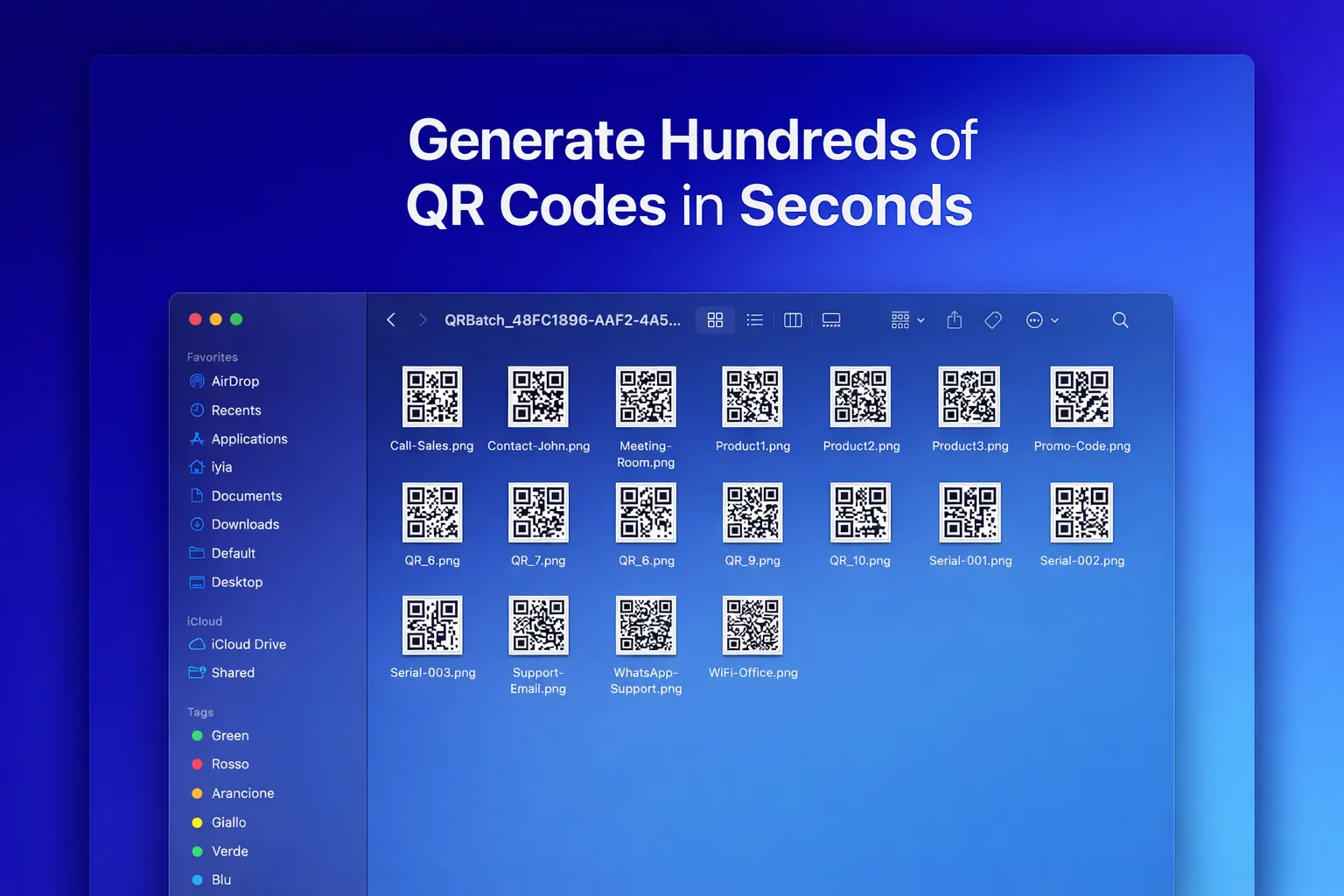
Most "bulk QR generators" online work like this: you upload your CSV, their servers generate the codes, you download a ZIP. Convenient. Also, depending on what's in your CSV, a problem.
Your CSV might contain:
- Internal machine IDs that map to your factory layout
- Intranet URLs that reveal your infrastructure (
https://erp.acme.local/...) - Credentials embedded in URLs (yes, it happens — and yes, it shouldn't)
- Customer SKUs, order numbers, addresses
- File paths that describe your shared-drive structure
If any of that data shouldn't leave your network — for compliance, contract, or just plain common sense — you need a tool that runs locally.
This is a tutorial for doing exactly that, on Windows and macOS, with a native desktop app. Total time: under fifteen minutes for 500 QR codes, including label printing setup.
What you need
- A computer running Windows 10/11 or macOS 12+
- Codex QR Desktop (free download; the bulk feature is a Pro feature, more on that below)
- A CSV file or a plain text file with one content per line
- 30 minutes if you've never done this before; 5 minutes if you have
Step 1 — Prepare your CSV
The format is plain CSV with two columns:
label,content
WC-517,https://intranet.acme.local/sop/wc-517
WC-518,https://intranet.acme.local/sop/wc-518
WC-519,file:///L:/SOPs/wc-519-housing.html
WC-520,smb://fileserver/SOPs/wc-520.pdf
Three rules:
- The first column is the filename of the generated PNG (without the
.pngextension). Use stable IDs you can reprint later. - The second column is the QR payload. Everything after the first comma is treated as content, so commas inside the content (common in WiFi payloads like
WIFI:T:WPA;S:Acme,Guest;P:...) are preserved. - No header row required. If you include one (
label,content), it'll be processed as if it were data — so either skip it or make it look like a valid row.
A plain TXT also works — one content per line, no comma needed. The generator auto-labels rows QR_1, QR_2, QR_3, etc. Use TXT for one-shots, CSV for production runs.
Step 2 — Drop it into the app
Open Codex QR Desktop on Windows. From the home screen, tap Generate QR Code → Batch (CSV/TXT).
Two ways to load:
- Drag the file onto the drop zone
- Paste the rows directly into the text area below (for ad-hoc runs)
Both produce the same preview list: each row becomes a card showing label + content, and the bottom shows "5 items", "127 items", etc. If you got the count wrong, hit the X to clear and reload.
Step 3 — Generate
Click Generate N QR Codes. The bottom bar shows a progress bar in real time. For 500 items you're looking at about 30 seconds on a modern laptop — the generation is sequential and fully in-memory at this stage (nothing written to disk until you choose the export destination).
When the run finishes, a green ✓ Complete badge appears and the bottom button turns green: Export All.
Step 4 — Export
Click Export All. A modal asks: Save as ZIP or Save to Folder.
- Save as ZIP: one
.zipcontaining all PNGs. Best for sharing with the print shop or archiving in a shared drive. - Save to Folder: individual PNGs in a folder you pick. Best for direct integration with a label-printing template.
Either way: nothing has touched a server. The CSV stayed on your machine, the PNGs stayed on your machine.
Why "local" matters
For most users a cloud bulk generator is fine. For three specific groups it's not:
1. Manufacturing and defense — your asset list is operationally sensitive. ITAR, NIS2, ISO 27001 access control all push you toward keeping that list inside your perimeter. A QR generator that uploads to a third party is a covert data exfiltration vector even when the third party is well-meaning.
2. Agencies producing QRs for multiple clients — your client's URLs and campaign IDs are under NDA with that client. Uploading them to a SaaS QR service is, technically, a sub-processor relationship you may not have disclosed in the master agreement.
3. Privacy-conscious individuals — same logic at smaller scale. If your CSV has customer email addresses, names, anything personal, GDPR Article 28 applies and you need a DPA with every processor. Local generation eliminates the processor relationship.
If you're not in any of these three groups, use whatever's fastest. If you are, the desktop option pays for itself the first time legal asks you "who sees this data".
Pro tips for production runs
- Use stable label IDs, not sequential.
WC-517survives a reorg;qr-1does not. - Version-control your CSV. Keep the CSV that produced each batch of printed labels. When you reprint label 348 in 18 months, you want bit-for-bit reproducibility.
- Color and logo are batch-level settings, not per-row. If your branding requires per-row variation (white-label clients, multi-brand campaigns), generate in multiple passes — one per visual config.
- Test print one label first before committing 1,000 to your printer. Scan it from a meter away with the worst phone in your team. If it scans, you're good.
- ECC level: change it in Settings before generating. Level H is the right default for shop-floor labels; level L is fine for screen-only promotional QRs.
Limits and pricing
The Codex QR Desktop free tier lets you generate single QRs unlimited times on Windows. Batch generation from CSV/TXT is a Pro feature — that's the main difference. Pro is $5/month or $39/year (or as a one-time license) and unlocks batch, logo overlay, high-resolution export (up to 2048 px), custom colors, and the rest of the advanced workflow. See full pricing.
Download Codex QR Desktop
Free for unlimited basic generation. Pro upgrade in-app when you need batch.
Get Codex QR Desktop Read the pillar guide