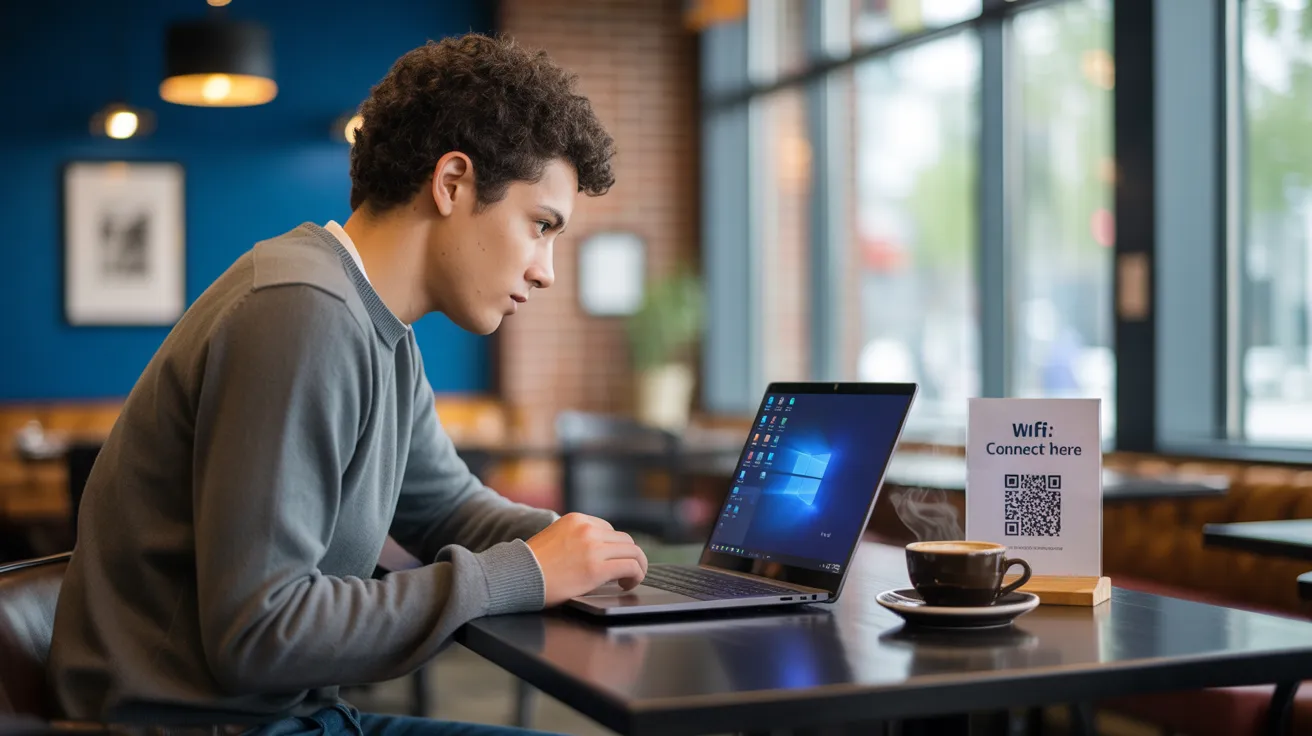
Picture this: It's 2025, you're sitting in your favorite café with your Windows 11 laptop, ready to start your workday. There's a WiFi QR code on the table, but here's the catch—you can't scan it because you're not connected to the internet yet. It's the classic chicken-and-egg problem that digital nomads and remote workers face every day.
But what if I told you there's a simple solution that works completely offline?
The Problem Every Café Worker Faces
You've been there. You walk into a new coffee shop, order your cappuccino, open your laptop, and spot the WiFi QR code. You pull out your phone to scan it, but then realize:
- Your phone is almost dead and you didn't bring the charger
- You prefer working on a single device without constant phone switching
- The QR code is displayed on a poster across the room (not convenient to photograph)
- You simply want a more professional, streamlined workflow
Most Windows users assume they need an active internet connection to scan QR codes. They're wrong.
The Solution: Offline QR Scanning on Windows 11
The secret? Having the right tool installed before you need it. Let me walk you through exactly how I solve this problem every single day.
Step 1: Download and Install Codex QR (Before You Leave Home)
This is crucial—you need to set this up while you still have internet at home or office. Here's what to do:
Download Codex QR from the Microsoft Store:
- Open the Microsoft Store on your Windows 11 PC
- Search for "Codex QR"
- Click "Get" or "Install"
- Launch the app and purchase your license ($49/year for unlimited use)
Why purchase before you leave? Because Codex QR works 100% offline once installed, but you need internet connectivity to complete the initial purchase and activation. Think of it as insurance—invest $49 once, solve this problem forever.
Step 2: Head to Your Favorite Café
Now comes the fun part. You're at the café, laptop open, no internet connection yet. The WiFi QR code is sitting on the table or displayed on the wall. Here's where the magic happens.
Step 3: Open Codex QR (Works Completely Offline)
This is the moment that changes everything. Open Codex QR from your Windows 11 start menu or taskbar. The app launches instantly—no internet required, no loading, no waiting.
Unlike web-based QR scanners or apps that require cloud connectivity, Codex QR is a native Windows application. Everything runs locally on your PC. Your webcam, the scanning algorithm, the WiFi credential extraction—it all happens on your machine.
Step 4: Scan from Camera
Click the "Scan from Camera" button in Codex QR. Your webcam activates (again, completely offline). Hold the WiFi QR code up to your webcam, or position your laptop so the built-in camera can see the QR code on the table.
Pro tip: If the QR code is on a poster or table tent, you don't need to move it. Simply angle your laptop screen to point the webcam at the code. The scanning is instant—usually under 2 seconds.
Step 5: Et Voilà – Instant WiFi Connection
Codex QR decodes the WiFi QR code and displays:
- Network Name (SSID)
- Password
- Security Type (WPA2, WPA3, etc.)
Click "Connect to Network" and Windows 11 automatically joins the WiFi. No typing, no errors, no hassle. You're online in seconds.
Why This Changes Everything for Remote Workers
Let me break down why this workflow is a game-changer for anyone who works from cafés, coworking spaces, or while traveling in 2025:
1. Phone-Free Workflow
Stop the constant device switching. Your laptop is your primary tool—keep it that way. No need to fumble with your phone, especially when it's buried in your bag or running low on battery.
2. Works in Airplane Mode
Codex QR doesn't need internet to scan QR codes. You can be in full airplane mode (except for WiFi, of course, which you're about to connect to). This means faster laptop startup and better battery life until you're ready to go online.
3. Professional Image
There's something undeniably professional about using your Windows laptop for everything. No pulling out your phone, no awkward angles trying to photograph a QR code—just smooth, efficient connectivity.
4. Scan Any QR Code Type Offline
While we're focusing on WiFi QR codes for café connectivity, Codex QR handles all QR code types offline:
- URLs (open them when you get online)
- vCards (save contact info)
- Plain text
- Email addresses
- Phone numbers
- Calendar events
Real-World Scenarios Beyond Cafés
Hotels and Airports
Many hotels now display WiFi QR codes in rooms. Same problem: you arrive, you're not online yet, but the credentials are right there in QR format. Codex QR solves it instantly.
Conferences and Events
Event WiFi is often shared via QR code at registration desks or on badges. Scan it offline with your laptop webcam and you're connected faster than everyone else fumbling with their phones.
Client Offices
Visiting a client's office? They hand you a guest WiFi QR code. Professional move: scan it with your laptop right there, no phone needed.
The Technical Advantage: Why Offline Matters
Let's talk about why Codex QR's offline capability isn't just convenient—it's fundamentally better:
Privacy First
When you scan a QR code with Codex QR, the data never leaves your computer. There's no cloud processing, no server uploads, no data collection. The QR code is decoded locally using your CPU. For WiFi passwords especially, this means your network credentials stay on your device.
Instant Processing
No network latency. No waiting for server responses. The QR code scanning algorithm runs natively on your Windows 11 PC, leveraging your Intel or AMD processor. This is why scanning is so fast—typically under 2 seconds from camera activation to decoded results.
Reliability
Internet-dependent QR scanners fail when connectivity is poor. Airport WiFi is spotty? Coffee shop has slow internet? Doesn't matter. Codex QR works regardless because it doesn't need internet to function.
How It Compares to Alternatives
Windows 11 Built-in Camera App
Windows 11 does have QR scanning in the Camera app, but it has significant limitations:
- Basic functionality only (URLs primarily)
- No WiFi QR code auto-connection
- No history of scanned codes
- No advanced QR types support
Web-Based QR Scanners
These literally don't work without internet. You'd need to photograph the QR code with your phone, get online somehow, upload it to a website... it defeats the entire purpose.
Phone Apps
Your phone can scan QR codes, but then you're manually typing the WiFi password from phone to laptop. Codex QR eliminates this step entirely with its Windows 11 WiFi integration.
Investment That Pays for Itself
Let's do the math. At $49/year, Codex QR costs about $4 per month. If you work from cafés just 2-3 times per week, the time saved on WiFi connectivity alone justifies the cost:
- Time saved per café visit: ~2 minutes (no phone needed, instant connection)
- Café visits per month: ~10
- Time saved per month: 20 minutes
- Your hourly rate: Let's say $50/hour
- Value generated: $16.67/month = $200/year
That's a 400% return on investment, and we're only counting time savings on WiFi connectivity. Add in all the other QR codes you'll scan throughout the year, and it's a no-brainer.
Getting Started: Your Action Plan
Here's exactly what to do today:
- While you're still online: Open Microsoft Store on your Windows 11 PC
- Search for "Codex QR" and install the app
- Purchase your license ($49/year for unlimited QR scanning and generation)
- Activate the app (requires internet for initial activation only)
- Test it out: Scan any QR code to confirm it works
- Head to your favorite café and experience the magic
Conclusion: The Future of Café Productivity
In 2025, remote work and café productivity are here to stay. The little things matter—the tools that remove friction, save time, and make your workflow smoother. Codex QR's offline QR scanning on Windows 11 is one of those tools.
No more "I can't connect because I can't scan the QR code" paradox. No more pulling out your phone mid-workflow. No more manually typing WiFi passwords from a tiny screen.
Just open your laptop, launch Codex QR, scan the code, and get to work. It's that simple.
See you at the café. ☕
Ready to Transform Your Café Workflow?
Download Codex QR for Windows 11 today. Works 100% offline. Scans any QR code in seconds. Professional solution for modern remote workers.
Download Codex QR - $49/year